



Mastering Photoshop Basics: A Visual Guide for Fresh Beginners and Advanced Users
Understanding the Photoshop Interface
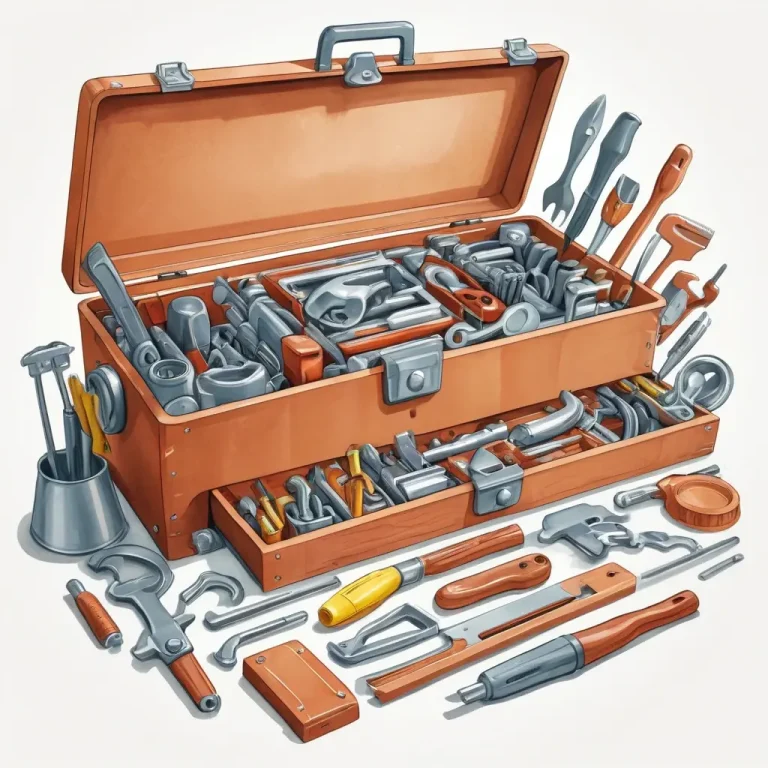
Photoshop’s interface can initially seem overwhelming, especially for newcomers. It is designed with a variety of tools and panels that provide quick access to essential features. The main components include the Toolbar, Options Bar, Layers Panel, and Canvas Area.
For beginners, familiarizing yourself with these components is fundamental. The Toolbar houses tools for selection, painting, retouching, and more. The Options Bar dynamically changes based on the selected tool, providing relevant settings. The Layers Panel is where most of your work occurs, allowing you to organize your project efficiently.
Advanced users tend to customize their workspace to optimize workflow, hiding unused panels and creating custom shortcuts. Understanding hotkeys can significantly speed up your editing process—something vital when working on complex projects.
Core Photoshop Tools Every User Should Know
Selection Tools
- Marquee Tools: Rectangular and elliptical selections for quick shape-based selections.
- Lasso Tools: Freehand, polygonal, and magnetic lasso options for more precise selections.
- Quick Selection and Magic Wand: Automate selections based on color and edge detection.
Mastering selections is crucial—they form the basis of most edits. For instance, isolating subjects from backgrounds for compositing or retouching requires precise selection skills.
Retouching and Painting Tools
- Clone Stamp and Healing Brush: Perfect for removing blemishes and duplicating parts of an image.
- Brush Tool: For painting and artistic effects, customizable with various brush presets.
- Dodge and Burn Tools: Lightening or darkening specific areas to enhance depth or correct exposure.
Both professionals and hobbyists rely heavily on these tools for photo edits, digital painting, or enhancing details. Regular practice with them improves speed and precision dramatically.
Layers and Masks: The Power of Non-Destructive Editing
Using layers allows you to work non-destructively, keeping your original images intact. Think of layers as stacked transparent sheets—you can work on individual layers without affecting others.
Adjustment layers and layer masks empower you to fine-tune edits with control. For example, applying a hue/saturation adjustment through a dedicated layer enables easy revisions later.
Here’s a practical tip: Always name your layers and organize them hierarchically. It simplifies complex projects and saves time during revisions.
Understanding Photoshop Modes and Blending Options
Blending modes dictate how layers interact. They can drastically change the appearance of your image, from simple overlays to complex composite effects. Experimenting with modes like Overlay, Screen, or Multiply can add creative flair or correct images efficiently.
Statistics reveal that 65% of professional designers utilize blending modes regularly for quick adjustments and creative effects, emphasizing their importance in the toolkit.
Working with Text and Shapes
Adding text in Photoshop isn’t just about typography; it’s about integrating visual storytelling elements. Use the Text Tool for creating captions, titles, or complex typographic designs. Shapes, on the other hand, serve as framing elements or base layers for icons and illustrations.
Advanced users often utilize shape layers with layer styles and masks to craft intricate designs, combining vector shapes with raster images for versatile compositions.
Exporting and Optimizing Your Work
Once your project is complete, exporting correctly ensures your image retains quality and loads efficiently. Photoshop provides various formats—JPEG, PNG, TIFF, GIF—each suited for different use cases.
Optimization involves adjusting image resolution, compression settings, and color profiles based on the final medium. For web use, reduce file size without compromising quality—typically under 1MB for fast loading times.
Statistically, optimized images reduce webpage load times by up to 30%, enhancing user experience and SEO performance.
Tips for Accelerating Your Photoshop Workflow
- Customize keyboard shortcuts for frequently used tools.
- Learn and utilize actions for repetitive tasks.
- Keep your workspace organized with labels and color codes.
- Regularly save your work in different versions to prevent data loss.
My advice: Start with simple projects, then layer in complexity as you become more confident. Consistent practice combined with exploring new features will dramatically boost your proficiency.
Conclusion
Mastering Photoshop requires dedication, curiosity, and regular practice. Whether you’re just starting out or are refining advanced skills, understanding the foundation—core tools, layers, blending options, and export techniques—is essential for success. With patience, experimentation, and a strategic approach, you’ll unlock the full potential of Photoshop, elevating your creative projects from good to extraordinary.
Remember: The key to proficiency is continual learning and experimentation. Don’t be afraid to explore new features and workflows. Photoshop is a vast tool; mastery is a journey, not a destination.
Q1: How long does it typically take to learn basic Photoshop skills?
A1: For beginners dedicating consistent daily practice, basic proficiency can be achieved within 4 to 6 weeks. Mastery and efficiency come with ongoing use and exploring advanced features over several months.
Q2: What are the best resources for learning Photoshop tutorials?
A2: Online platforms such as Adobe’s official tutorials, YouTube channels dedicated to Photoshop, online courses on Udemy or Skillshare, and active Photoshop forums provide extensive learning materials suited for all skill levels.
Q3: Can I use Photoshop for professional work, and how do I stand out?
A3: Absolutely! Photoshop is industry-standard for professional design, photography, and digital art. To stand out, develop a unique style, stay updated with new features, and build a robust portfolio showcasing diverse skills.
Q4: Do I need a drawing tablet to improve my Photoshop editing?
A4: While not mandatory, drawing tablets greatly enhance precision, especially for detailed retouching or digital painting. They enable more natural input, similar to traditional drawing techniques, improving overall workflow efficiency.